Rotate: Click and hold the middle-mouse button and drag.
Zoom: Scroll the middle-mouse wheel forward or backward.
Pan: Hold Ctrl, click and hold the middle-mouse button, and drag.
Using the 'Heads up' toolbar - appears when a project is open.
Default View: Left-mouse-button click.
Pan: Left-mouse-button click to activate the mode, then click, hold, and drag in the viewport to pan.
Rotate: Left-mouse-button click to activate the mode, then click, hold, and drag in the viewport to rotate.
Zoom: Left-mouse-button click to activate the mode, then click, hold, and drag up or down in the viewport to zoom in or out.
Zoom to Fit: Left-mouse-button click.
Cancel Current Action: Left-mouse-button click to exit the active navigation mode.
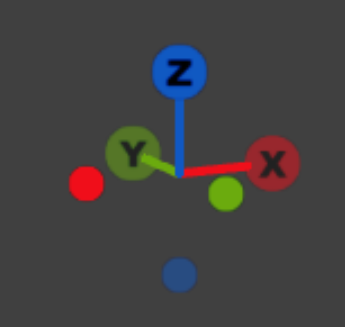
View Manipulator
View orientation can be changed by left-clicking the orientation circles on the view manipulator.
Selection & Deletion
⚠️ Z-clipping is automatically disabled when any selection tool is active. To re-enable it, deactivate the selection tool by clicking the selected tool again.
Box
Left-mouse-button click to activate or deactivate the tool.
Left-click, hold, and drag in the viewport to draw a selection box.
All points within the box will be selected.
The selection colour can be customised in the Application Settings panel.
To subtract regions from the selection, hold Alt and draw.
Polygon
Left-mouse-button click to activate or deactivate the tool.
Use left-mouse clicks to define the polygon boundary.
Right-mouse-button click to finish and accept the selection.
The selection colour can be customised in the Application Settings panel.
To subtract regions from the selection, hold Alt and draw.
Lasso
Left-mouse-button click to activate or deactivate the tool.
Left-click, hold, and drag in the viewport to draw a selection area.
All points within the area will be selected.
The selection colour can be customised in the Application Settings panel.
To subtract regions from the selection, hold Alt and draw.
Paintbrush
Left-mouse-button click to activate or deactivate the tool.
Hover over the points to be selected, then left-click, hold, and drag in the viewport to select.
All points within the selection sphere will be included.
The selection colour can be customised in the Application Settings panel.
To subtract regions from the selection, hold Alt and drag.
To change the sphere size, hold Alt and scroll the mouse wheel.
Clear Selection
Clears the current selection.
Delete selected points
Deletes the selected points from the project and moves them into the Deleted Points space in the Project Tree.
Points stored in the Deleted Points space are excluded from all further processing.
Delete unselected points
Deletes the un-selected points from the project and moves them into the Deleted Points space in the Project Tree.
Points stored in the Deleted Points space are excluded from all further processing.
To access deleted points, right-click Deleted Points in the Project Tree and select Edit Deleted Points.
Deleted points can be undeleted and restored to the project using the same selection tools described above.